How to call directly from Google Sheets, and how RMDialer calls the whole sheet
There is a free trick that makes any number in a sheet tappable on your phone. It works, it takes two minutes, and it stops being enough at about number thirty.
Visit rmdialer.com Get it on Google Play
Included in the platform licence. Not a paid add-on.
The short version
- Free method: =HYPERLINK("tel:"&A2, A2), tap on Android.
- Ctrl+K inserts the same link into one cell manually.
- Works fine to about thirty numbers, then the friction wins.
- RMDialer connects the sheet and dials the whole list.
- New rows in the sheet arrive as callable leads on their own.
How do you call directly from Google Sheets?
To call directly from Google Sheets, turn the number into a tel: link and tap it on a phone. In a cell next to the number, enter =HYPERLINK("tel:"&A2, A2), replacing A2 with the cell holding the number. Opening that sheet in the Google Sheets app on Android and tapping the link hands the number to the phone dialer. Ctrl+K does the same thing manually for a single cell. This is free, takes about two minutes, and needs no add-on. It also stops scaling at roughly thirty numbers, because you are still returning to the sheet, scrolling, tapping and coming back after every call. RMDialer is the other approach: connect the sheet once and it becomes a calling list that dials itself, with new rows flowing in automatically as the sheet grows.
Trusted by 3,500+ businesses
- 4.8 / 5
-
-
-
-
- Meta Tech Provider
- D-U-N-S Registered
Some of the businesses using WappBlaster products every day
The free method, step by step
This needs no add-on, no extension and no account, and it is the right answer for a short list. Five minutes end to end.
Step 1. Get the numbers into a callable format. Store each number as digits with the country code and nothing else: +919876543210, not +91 98765-43210. Spaces, dashes and brackets are the single most common reason a tel: link does nothing when tapped. If your column came from an export and has formatting in it, clean it with =SUBSTITUTE(SUBSTITUTE(SUBSTITUTE(A2," ",""),"-",""),"(","") or simply Find and replace across the column. Also watch for Sheets stripping a leading zero or converting a long number to scientific notation: format the column as Plain text (Format, then Number, then Plain text) before pasting.
Step 2a. One number, by hand. Click the cell, press Ctrl+K (Cmd+K on a Mac), and enter tel:+919876543210 as the link target. Ctrl+K is simply the insert-link shortcut in Google Sheets; there is nothing calling-specific about it. The tel: prefix is what tells a device to hand the number to its dialer rather than treating it as a web address.
Step 2b. A whole column, with a formula. In an empty cell beside the first number enter =HYPERLINK("tel:"&A2, A2), then drag the fill handle down the column. Replace A2 with whichever cell holds your number. Every row now shows a tappable version. If you would rather see the person’s name than the digits, use =HYPERLINK("tel:"&B2, A2) with names in A and numbers in B.
Step 3. Open it on a phone, not a desktop. This is the step people skip and then conclude the method is broken. A tel: link on a desktop does nothing unless a softphone is installed and registered to handle it. Open the sheet in the Google Sheets app on Android, tap the link, and the dialer opens with the number filled in. You still press the green button; a tel: link never places a call by itself.
Step 4. Share it correctly. If colleagues will call from the same sheet, share with at least Viewer access. The links work for anyone who can open the file. Note what this does not give you: two people tapping the same sheet have no way of knowing the other already rang that number, which is the first thing that breaks once more than one person is calling.
The same trick in Excel
HYPERLINK exists in Excel with the same syntax, so =HYPERLINK("tel:"&A2, A2) works there too, and Ctrl+K inserts a link in Excel exactly as it does in Sheets.
The difference is what happens when you tap it. Excel on Android and iOS handles tel: links and opens the dialer; Excel on a desktop hands the link to whatever application is registered for tel:, which on most business machines is nothing at all. So the practical requirement is identical: the file has to be open on the phone.
If your list arrives as an .xlsx attachment, which in Indian business it very often does, the fastest free route is to open it in the Excel or Google Sheets mobile app, add the formula column there, and tap down the list. For anything past a few dozen rows, uploading the file to a dialer is less work than maintaining the formula column.
Automating the loop with RMDialer
Everything above still leaves you doing the same four things after every call: return to the sheet, find your place, type the outcome, and tap the next link. RMDialer removes that loop rather than speeding it up.
Connect the sheet once. Paste the Google Sheets link into RMDialer, map which column holds the name, the number, the city or anything else you keep, and choose who the leads go to. Sharing is by link as a viewer, so no Google account is connected. From that point the sheet is a live source rather than a file you export.
The list then dials itself. Tap Start and RMDialer places the first number, and the next the moment that call ends. No returning to the sheet, no scrolling, no losing your place at row 340.
The record writes itself. When a call ends an outcome sheet appears on the call screen: a status, a remark you can dictate rather than type, and a callback date. Two taps, and the next number is already ringing. That is the column you were maintaining by hand, filled in without leaving the call.
New rows arrive on their own. Anything added to the sheet afterwards becomes a callable lead automatically, assigned round-robin. If your ad platform or website form already writes into that sheet, you now have automated lead capture with no integration work.
And because RMDialer dials through the SIM in the handset, the person you are calling sees your ordinary mobile number, exactly as they would if you had tapped the link yourself. The mechanism is on the SIM-based dialler page.
Where the free method stops working
It does not break; it just becomes slower than the work it was meant to save. The ceiling arrives at around thirty numbers for most people.
The loop is the problem. Tap the link, make the call, end the call, return to Sheets, find your place in a list that has scrolled, type what happened in a column beside it, then scroll to the next row. That is fifteen to twenty seconds of handling per call plus the risk of losing your place, and it degrades as the list grows rather than staying constant.
Three specific things also cannot be done at all. You cannot see who you are calling before they answer, because the sheet is behind the dialer once the call connects. You cannot be reminded to call someone back on Thursday. And if two people work the same sheet, nothing stops both ringing the same person.
For a list of twenty enquiries, none of that matters and you should use the free method. For two thousand, all of it does.
Connecting the sheet instead of exporting it
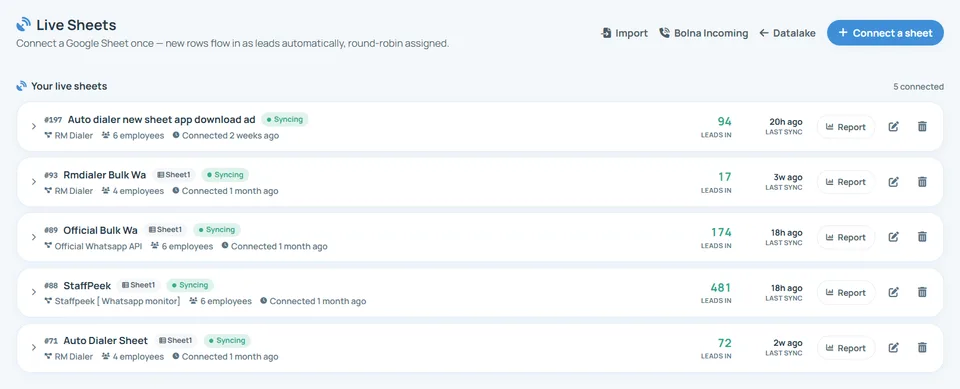
The alternative to tapping links is to let the sheet feed a dialer. RMDialer connects to a Google Sheet once, maps the columns, and new rows become callable leads on their own, assigned round-robin across whoever you nominate.
That distinction between connecting and exporting matters more than it sounds. A one-time CSV export is a snapshot: rows added afterwards are invisible until someone remembers to export again, which is how leads sit unworked for a fortnight. A connected sheet has no such step. If your ad platform, website form or lead portal can write to a sheet, and most can, you now have automated lead capture without an integration project.
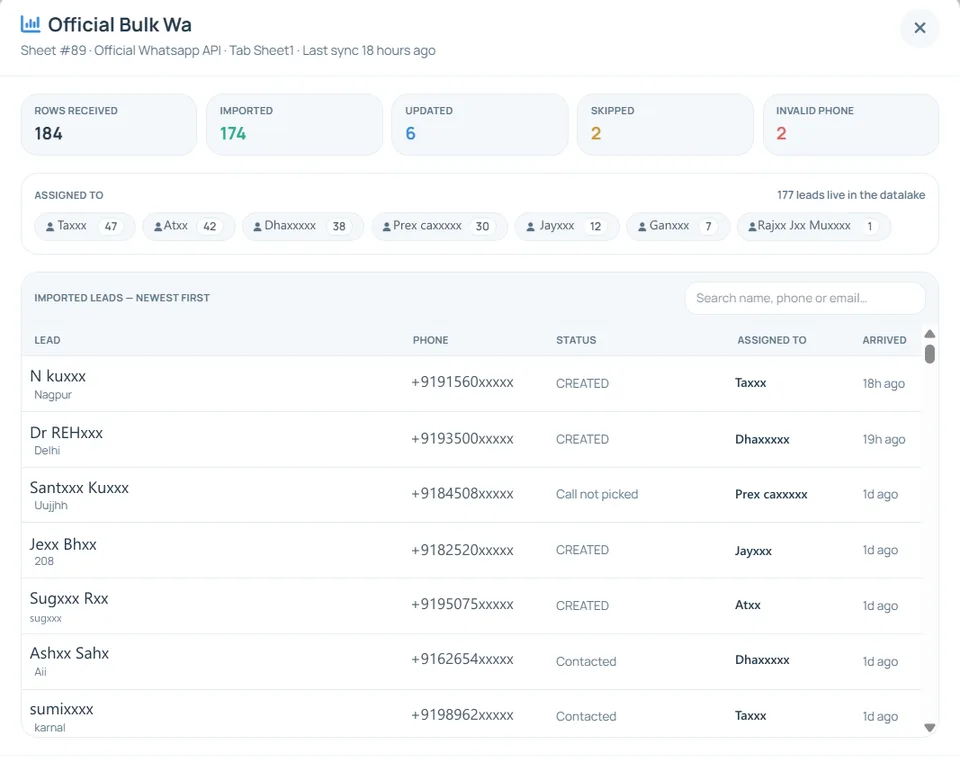
The sync report shown above is from a real batch: 184 rows received, 174 imported, 6 updated, 2 skipped as duplicates and 2 rejected for invalid numbers. Duplicates updating rather than doubling is what stops one customer appearing four times with four different statuses.
Excel, CSV and the file somebody WhatsApped you
Not every list lives in Google Sheets, and the same approach covers the others.
An Excel file or CSV uploads directly, with the column mapping remembered so the next file from the same source imports without repeating the setup. JSON works too for anyone exporting from another system.
The case worth calling out is a file shared to you on WhatsApp, because in Indian business that is how a very large share of lists actually change hands. RMDialer imports one directly from the share sheet rather than requiring you to save it, find it in Downloads and upload it, which is three steps where lists commonly get lost.
Whichever route the list takes, what arrives is the same: callable leads with statuses, notes and follow-up dates, described on the lead management page.
Which approach fits you
Use the free HYPERLINK method if your list is short, you are calling from one phone, and you do not need to record what happened in any structured way. It costs nothing and it works.
Use a connected dialer if the list runs to hundreds, if more than one person calls from it, if rows keep being added, or if you need to know which numbers were called and what the outcome was. The bulk calling app page covers the dialling side of that.
The honest test is whether you are currently losing more time to the sheet than the sheet is saving you. Most people can answer that immediately.
| Feature | HYPERLINK tel: links (free) | Sheets add-on or extension | Connected dialer (RMDialer) |
|---|---|---|---|
| Cost | Free | Varies, often per user | ₹1,908 per user per year |
| Setup time | Two minutes | Install and authorise | Connect the sheet once |
| Dials the next number itself | No, you tap each one | Sometimes | Yes, continuously |
| New rows appear automatically | You reopen the sheet | Varies | Synced on their own |
| Who you are calling, on screen | No | Rarely | Name, stage and last note |
| Outcome recorded | Type it in a column | Varies | Two taps on the call screen |
| Two people, one list | Both call the same person | Varies | Assigned per caller |
| Sensible list size | Up to about 30 | Low hundreds | Thousands |
Add-ons and extensions differ widely, so that column describes the category rather than a specific product. For a genuinely short list the free method is the right answer and we would rather say so.
In the app
Google sheet bulk calling app, on a real account
Screenshots from a working account, with customer names and numbers masked.
-
Every sync reports what happened to each row: imported, updated, skipped as a duplicate, or rejected for a bad number. -
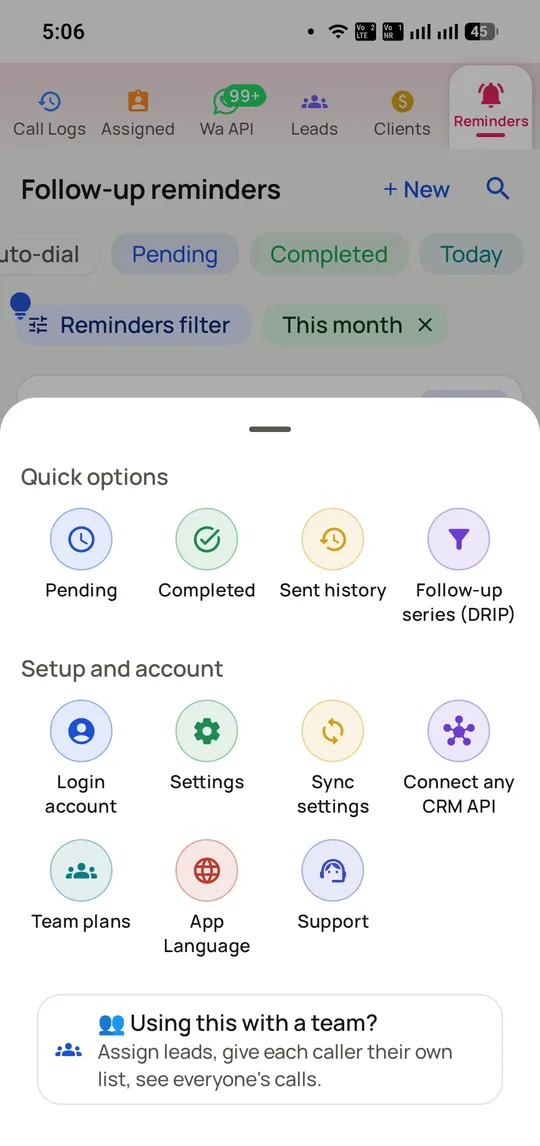
Connecting a sheet is one entry in the lead tools menu, alongside one-time CSV and Excel imports.
Capabilities
What you get
Everything here is documented and shipping today, not on a roadmap.
Connect once, not export repeatedly
A linked Google Sheet keeps delivering new rows as callable leads, so nobody has to remember to export again.
- Rows added later arrive on their own
- Round-robin assignment as they land
- Several sheets can feed one account
Column mapping that is remembered
Map name, number, city and whatever else you keep once per source, and the next sync uses the same mapping.
- Map a call-due date so leads arrive scheduled
- Custom fields supported
- Re-read headers when the sheet changes
Duplicates and bad numbers caught
A repeat number updates the existing lead instead of creating a second copy, and invalid numbers are rejected and reported rather than imported.
- One customer, one record
- Invalid count is a list-quality signal
- Every sync reports what it did
Excel, CSV and JSON too
Not everything lives in Sheets. Files upload directly, including one shared to you on WhatsApp, imported from the share sheet.
- No save, find, upload detour
- Sample file provided
- Import history kept and auditable
Then it dials
Once the sheet is connected the list is callable: continuous dialling, customer context on screen and two-tap outcomes.
- One call at a time from your own SIM
- Filter before dialling
- Outcome written back against the lead
Export back out
Leads and outcomes export to CSV whenever you want them, so connecting a sheet does not make the data hostage.
- CSV export on demand
- You keep the original sheet
- Nothing locked to the app
How it works
Setting it up
- 1
Share the sheet
Anyone with the link as viewer; no Google account is connected.
- 2
Map the columns
Name, number and anything else you keep, once per sheet.
- 3
Choose who gets the leads
Round-robin across the team or a nominated subset.
- 4
Start calling
New rows keep arriving as callable leads while you work.
Where it earns its keep
Common uses
-
Ad leads landing in a sheet
Forms and ad platforms that already write to Sheets.
-
Lists shared between teams
Where someone else maintains the file you call from.
-
Exhibition and event scans
Badge exports that arrive as one large spreadsheet.
-
Purchased Excel lists
A one-time file that needs calling and tracking.
-
Portal exports
Marketplace enquiries downloaded as CSV each morning.
-
Field teams on one shared sheet
Rows added by a coordinator, called by whoever is free.
Ships in these products
Already using something else?
Reviews
What customers say about Google sheet bulk calling app
5.0 from 41 ratings on Google Play
-
“Our ad leads land in a Google Sheet. Connecting it to RMDialer meant the team stopped exporting CSVs every morning, and leads that used to sit for two days now get called the same hour.”
Marketing manager, edtech, Pune
Verified RMDialer customer
-
“I was using the HYPERLINK trick on a sheet of 40 numbers and it was fine. At 900 numbers it was not. RMDialer just dials the sheet.”
Owner, industrial supplies, Ludhiana
Verified RMDialer customer
-
“Two coordinators add candidates to one sheet all day. With RMDialer the rows get assigned as they arrive, so our callers stopped ringing the same person twice.”
Operations lead, recruitment agency, Noida
Verified RMDialer customer
-
“Most of our lists arrive as Excel on WhatsApp. Importing straight from the share sheet in RMDialer removed the step where files used to get lost in Downloads.”
Founder, B2B packaging, Ahmedabad
Verified RMDialer customer
-
“The sync report is what convinced me. 184 rows in, two rejected for bad numbers, two duplicates updated. I could finally see what the purchased list was actually worth.”
Sales head, solar installer, Coimbatore
Verified RMDialer customer
Frequently asked questions
Straight answers about Google sheet bulk calling app.
How do I call directly from Google Sheets?
Turn the number into a tel: link and tap it on a phone. In a cell beside the number enter =HYPERLINK("tel:"&A2, A2), replacing A2 with the cell holding the number, then open the sheet in the Google Sheets app on Android and tap. The dialer opens with the number filled in. It is free and takes about two minutes.
Link to this answerWhat does Ctrl+K do in Google Sheets?
Ctrl+K (Cmd+K on a Mac) is the insert-link shortcut. Select a cell, press it, and enter the destination. For calling, enter tel: followed by the number, for example tel:+919876543210, and the cell becomes tappable. It is the manual, one-cell version of the HYPERLINK formula.
Link to this answerWhat does click to call mean?
A clickable element that hands a phone number to a device’s dialer instead of making you type it. On the web and in spreadsheets this is a tel: link. It does not place the call by itself: it opens the dialer with the number ready, and you still press the call button.
Link to this answerWhy does my tel: link not work?
Usually one of three things. You are on a desktop with no calling application configured, so nothing handles tel: links. The number contains spaces, dashes or brackets, which frequently break parsing, so store it as digits with a country code. Or the sheet is open in a browser on the phone rather than in the Google Sheets app, where link handling can differ.
Link to this answerCan I click to call from Google Sheets on Android?
Yes, and Android is where the method genuinely works. Open the sheet in the Google Sheets app, tap a tel: link, and the phone dialer opens with the number populated. On a desktop the same link does nothing useful unless a softphone is installed and registered to handle tel:.
Link to this answerIs there a free Google Sheets dialer?
The HYPERLINK tel: method is free and needs no add-on, and for a short list it is the right answer. There are also Workspace add-ons and Chrome extensions of varying quality. What none of the free approaches do is dial the next number automatically, show you who you are calling, or record what happened.
Link to this answerHow do I call a whole list from a spreadsheet?
Tapping links one at a time stops being practical at around thirty numbers, because of the return-to-sheet loop after every call. Beyond that you want a dialer that holds the list and places each call itself. RMDialer connects to the sheet, turns the rows into callable leads and dials them continuously.
Link to this answerDoes RMDialer need access to my Google account?
No. The sheet is shared by link as a viewer, which is why the import screen asks for a Google Sheets URL rather than a Google sign-in. No Google account is connected to RMDialer for this.
Link to this answerWhat happens when I add new rows to the sheet?
They arrive as new callable leads on their own, distributed round-robin to whoever you nominated, with no import step. That is the difference between a connected sheet and a one-time CSV export, where rows added afterwards stay invisible until somebody remembers to export again.
Link to this answerCan I bulk call from an Excel file instead?
Yes. Excel, CSV and JSON files upload directly and the column mapping is remembered for the next file from the same source. A file shared to you on WhatsApp can be imported straight from the share sheet, which saves the save-find-upload detour where lists commonly get lost.
Link to this answerWhat happens to duplicate numbers in my sheet?
A number already in the system updates the existing lead rather than creating a second copy, and the sync report tells you how many were updated versus newly imported. That is what stops one customer appearing several times with conflicting statuses, which also causes two callers to ring the same person.
Link to this answerCan several people call from the same sheet?
Yes, and this is where the free method fails outright. Rows are assigned per caller as they arrive, so two people never ring the same customer an hour apart. With tel: links in a shared sheet there is nothing preventing exactly that.
Link to this answerWill my outcomes write back to the Google Sheet?
Outcomes live against the lead in RMDialer rather than being written back into your sheet, and can be exported to CSV whenever you want them. Your original sheet is untouched, which is usually what people want since it is often maintained by someone else.
Link to this answerWhat does a Google Sheets calling setup cost?
The free tel: link method costs nothing. RMDialer is ₹1,908 per user per year with the dialer, the lead CRM, reports and WhatsApp follow-up included, and a free three-day trial. If your list is short, use the free method; we would rather tell you that than sell you a seat you do not need.
Link to this answerStill not answered?
Ask a real person. We reply on WhatsApp, usually within the hour.
More on rmdialer.com
Calling and dialer
Related features
Same licence, same login. These work together out of the box.
- Bulk calling app Search for this and you get two completely different products with similar names. Read more
- Lead management with dialer Leads do not die of objections. Read more
- Auto dialer Most "auto dialers" want you to buy a virtual number and route calls over the internet. Read more
- Caller ID and lead CRM A number tells you nothing. Read more
- Team calling reports The usual way to find out how many calls were made is to ask at seven in the evening and believe the answer. Read more
- Telecalling CRM Most telecalling CRMs fail on the same step: the caller has to stop, open another app and type what happened. Read more
See Google Sheets dialer on your own account
A short call on your real list and your real templates. No card, no sandbox.
- Set up with you on a call, not a help article
- Official Meta WhatsApp Business Platform
- Flat annual fee, Meta charges passed through at cost